Summary
This is part of Chronos tutorial series.
In this tutorial we will build, deploy and run Chronos application on your local dev enviroenment. You can use similar steps to run Chronos single container image on the Linux based server instances.
Requirenments:
- Node.js
v20.20.0andpnpmavailable (for building and running without docker). You will need this specific version. Use nvm if you have to. - Docker runtime (for building and running docker container images)
- Access to pull images from Docker Hub.
Build and run with pnpm
To build with pnpm and run Chronos application locally within nodejs runtime, follow the steps below.
# clone the code repository from GitHub
git clone git@github.com:intelligexhq/chronos.git
cd chronos/chronos_app

# you should see all project files including package.json

# install nodejs dependency packages
node -v # should give you v20.20.0
pnpm install
pnpm build
pnpm start
# chronos application will run on localhost:3000
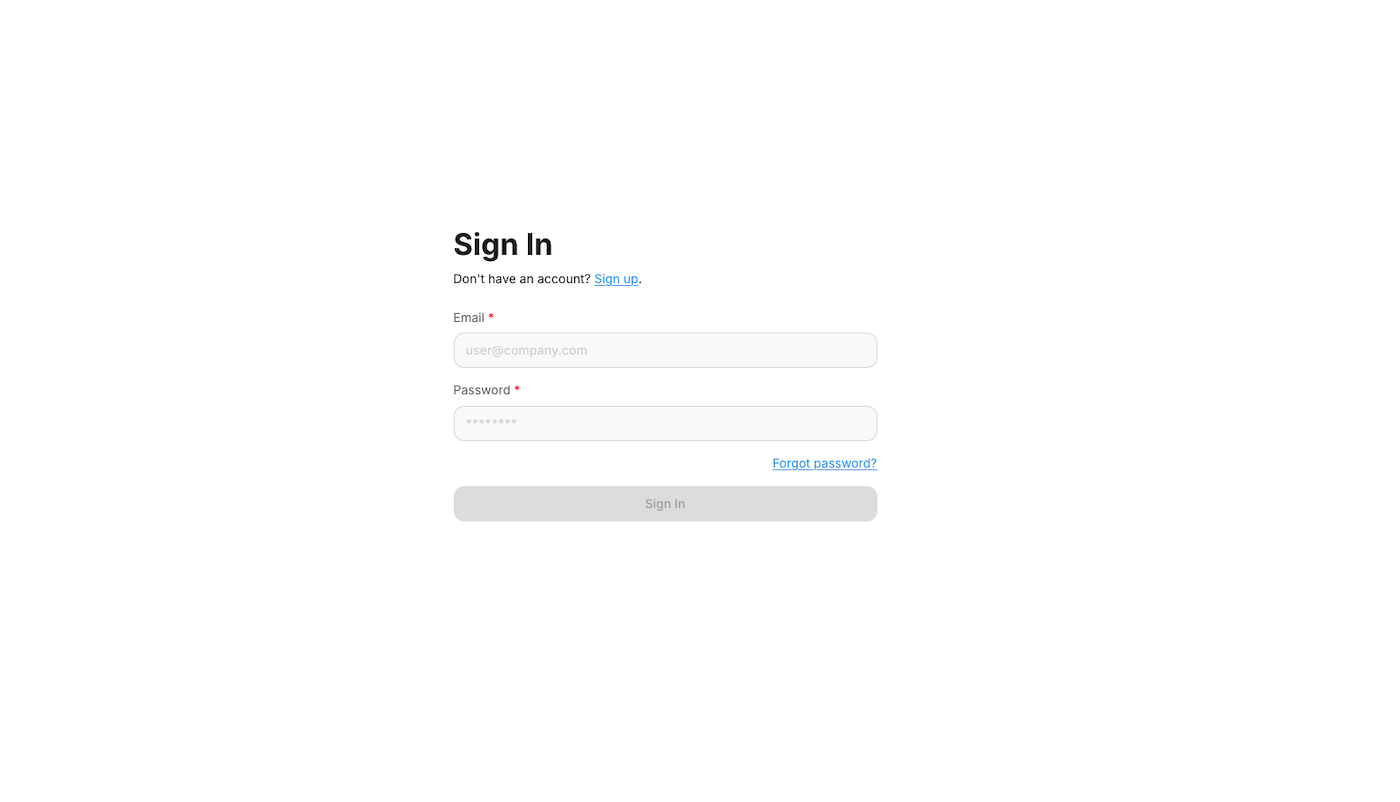
You should see login screen on the localhost:3000. Go to sign up link, and create a new user and login with new user details.
Build and run with docker
Another option to build and run Chronos application is by using containers. In order to build Docker container image and run container within Docker runtime, follow the steps below.
# clone the code repository from GitHub
# ignore if already have it cloned
git clone git@github.com:intelligexhq/chronos.git
cd chronos/chronos_app/docker

# you should see the Dockerfile.local and
# other docker compose files

# build local container image for Chronos
docker build -f Dockerfile.local -t chronos:local ..
docker run -d --name chronos -p 3001:3000 chronos:local
# chronos is now accessable on localhost:3001
docker stop chronos

# you should see the same login creen as above.
# go to signup to create new user and login
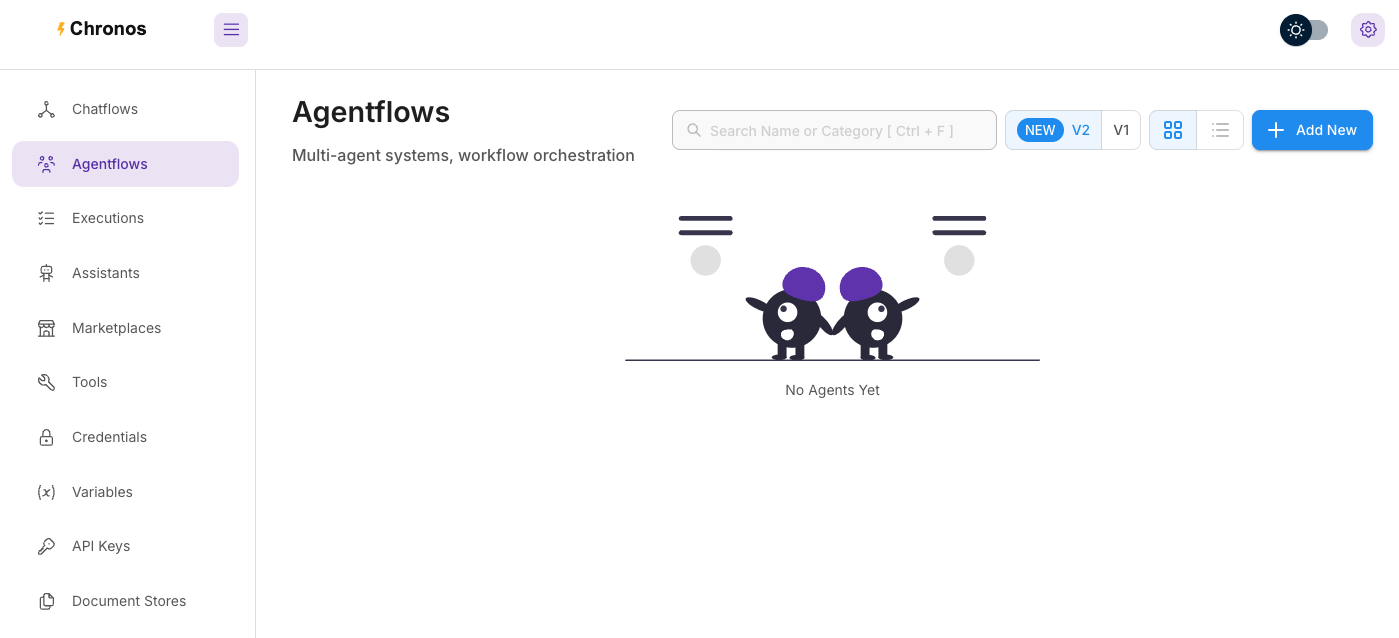
After new user login step, you should see the following application screen. You are now ready to stat visually building the AI agents and agent workflows.
Next steps
This simple tutorial shows how to get Chronos application up and running on local enviroenment. After the succesful user creation, you should see Chronos application screens and navigate arround.
Follow the other Chronos tutorials on Intelligex for the advanced hosting options and visual building of AI agent usecases.